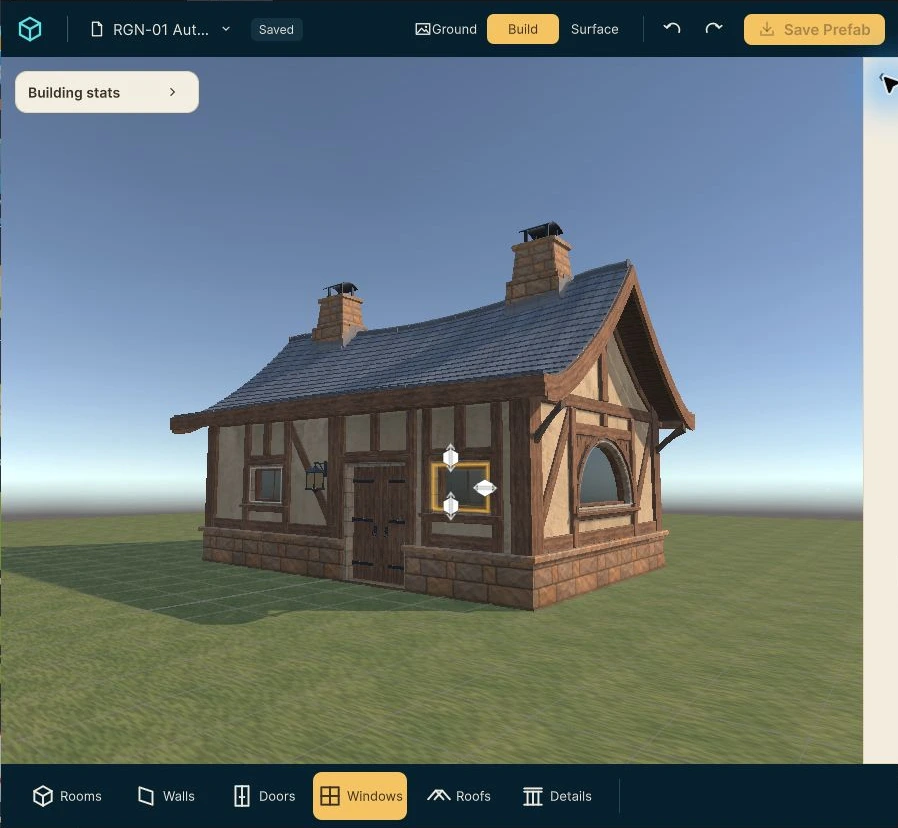
Door and window settings now sit beside the house preview in Unity Forge. Checks covered a narrow window, collapse and resize, Undo/Redo, reopening and work recovery in the Unity editor.
Forge 편집기 UI 담당
This episode stars · Forge 편집기 UI 담당
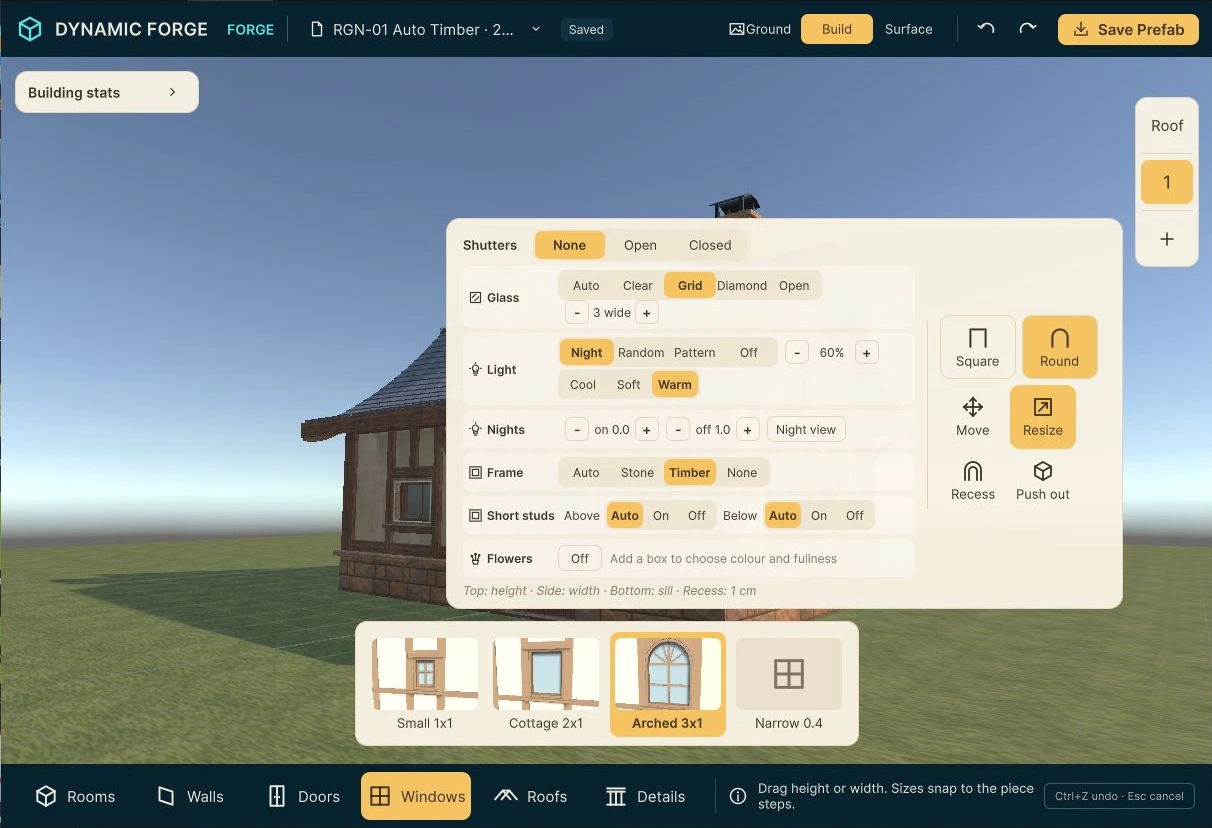
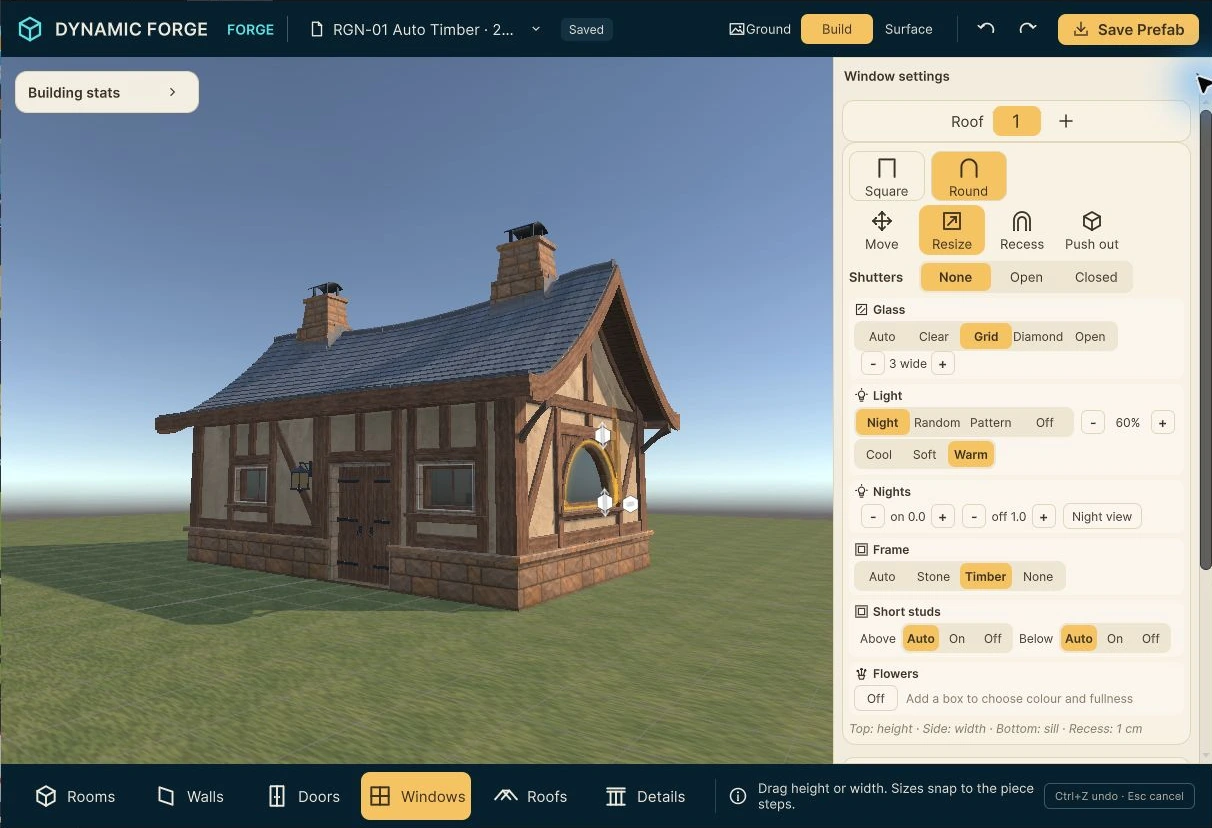
Opening the window settings could cover the house you were trying to edit. To see what changed, you had to dismiss the very controls you were using. We moved the settings and presets into a right-hand dock in Unity Forge, beside the house preview.
When the settings covered the houseActual Unity Forge capture before the dock change.Preview and settings alongside each otherRight-hand settings in the verified editor layout.
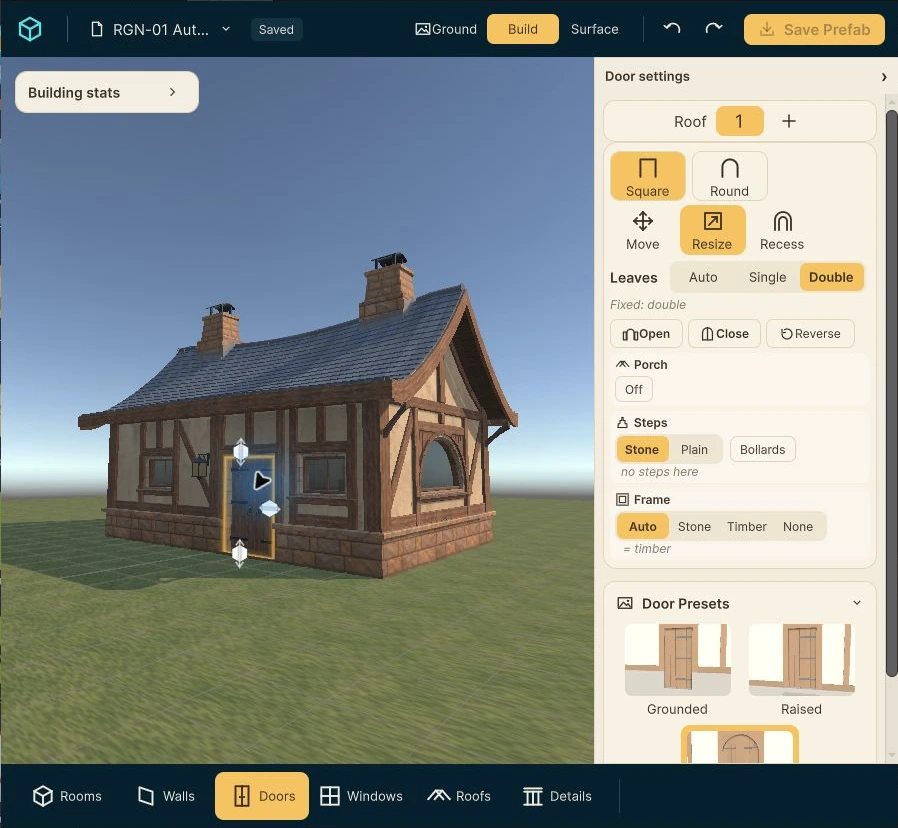
We narrowed the dock to 898 pixels and opened the door and window controls again. Long settings scrolled inside the panel, and collapsing it left a small handle when more room was needed for the model. We also checked that clicking a shutter control did not send a click through to the 3D view.
Door controls in the narrow dockDoor settings checked in the 898-pixel dock.The collapsed panelCollapsed settings make more room for the model preview.
The first drag did not change a value, so it did not count. We tried again on a selectable front window, raised it from 0.8 to 1.2 meters, and checked the saved values through Undo and Redo. We also checked that the interface came back with one panel after a reload. The narrowest verified dock was 898 pixels.
Based on actual work; expressions and robot scenes are dramatized. Actual work captures are labelled separately from illustrations.